Sync on save for Sublime

Sync on save for Sublime
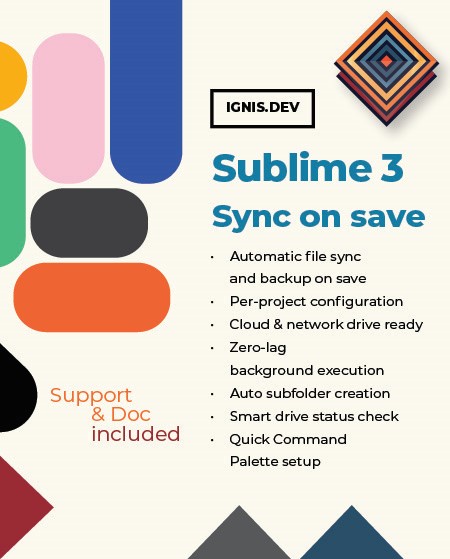
Automatically synchronize and back up your project files to a secondary directory, external drive, or mounted cloud storage (such as pCloud) every time you save in Sublime Text 3. Configured per project with asynchronous background execution, SyncOnSave ensures your work is mirrored instantly without interrupting or freezing your coding workflow!
Download available immediately after purchase.
Lightweight Sublime Text 3 package for automatic, per-project file synchronization and cloud backups on save
Sublime Text 3 is a fast, versatile code editor built for speed and efficiency. With SyncOnSave integrated into your workflow, you can automatically mirror and back up your modified project files to a secondary folder, external drive, or mounted virtual cloud storage (such as pCloud) the instant you hit save—eliminating the need for heavy background sync clients or manual file copying.
Instead of scanning entire directory trees, SyncOnSave triggers asynchronously on save (Ctrl+S / Cmd+S), copying only the file you just edited while preserving its exact relative folder structure and file metadata. Your editor stays completely responsive even when syncing to slower network shares or virtual drives.
Key Features of SyncOnSave for Sublime Text 3
- Per-Project Configuration: Set unique source and destination directories for every project directly inside your
.sublime-projectfile via the Command Palette (SyncOnSave: Setup Project Directories). - Asynchronous Background Sync: Runs quietly in the background without freezing or slowing down the Sublime Text interface.
- Smart Drive Detection: Automatically checks if your target drive is connected before syncing. If an external or virtual cloud drive (e.g.,
P:\) is unmounted, the plugin safely skips synchronization and notifies you in the status bar instead of throwing intrusive popup errors. - Automatic Directory Mirroring: Recreates your project's exact subfolder hierarchy in the target directory on the fly.
- Native Bottom Input Bar Setup: Configure your source and target paths quickly using Sublime Text's bottom input panel (located at the footer directly above the status bar) without disruptive modal dialogs.
Watch a demo of SyncOnSave for Sublime Text 3 in action:
Installation instructions are available in our knowledge base: SyncOnSave for Sublime Text 3 Installation Guide.

